Virtual Clinic • Ontario Patients Only • Bookings Open October 1, 2026

Welcome to CoreMD Track Setup
This guide helps you connect Healthie, Apple Health, Apple Watch, Oura Ring, and Withings devices so your health metrics can be organized inside your CoreMD profile.
CoreMD Track helps transform scattered health data into organized trends. Depending on your plan, these trends may be used for personal self-tracking, structured education, or scheduled physician review. CoreMD Track is not emergency care, not continuous physician monitoring, and not a replacement for your family doctor.
Why This Matters
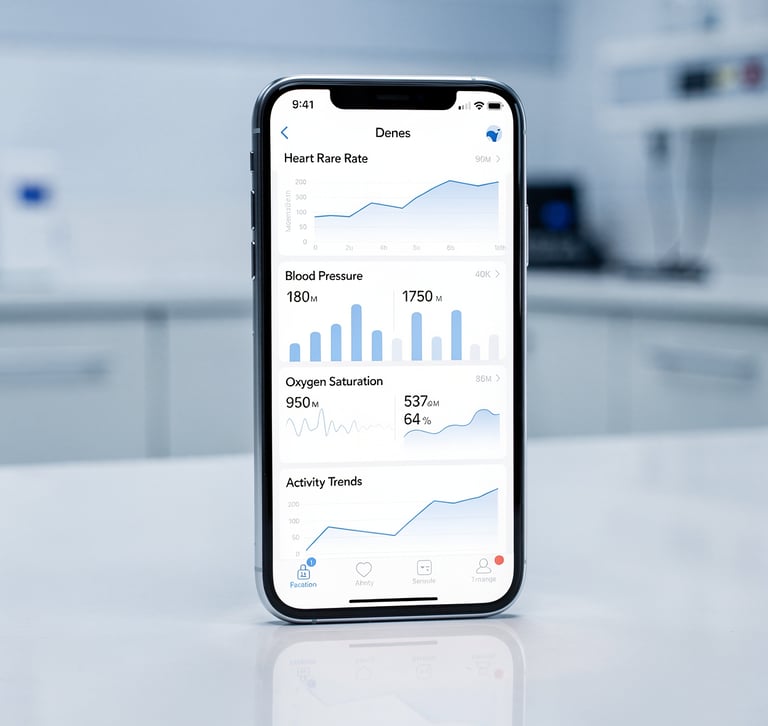
Your CoreMD Track experience is designed to move beyond guesswork.
It brings together structured health information, biometric trends, and patient-reported data, including:
Weight Trends
Appetite, mood, energy
Sleep Patterns
Activity Levels
Heart Rate
Behavioral Signals
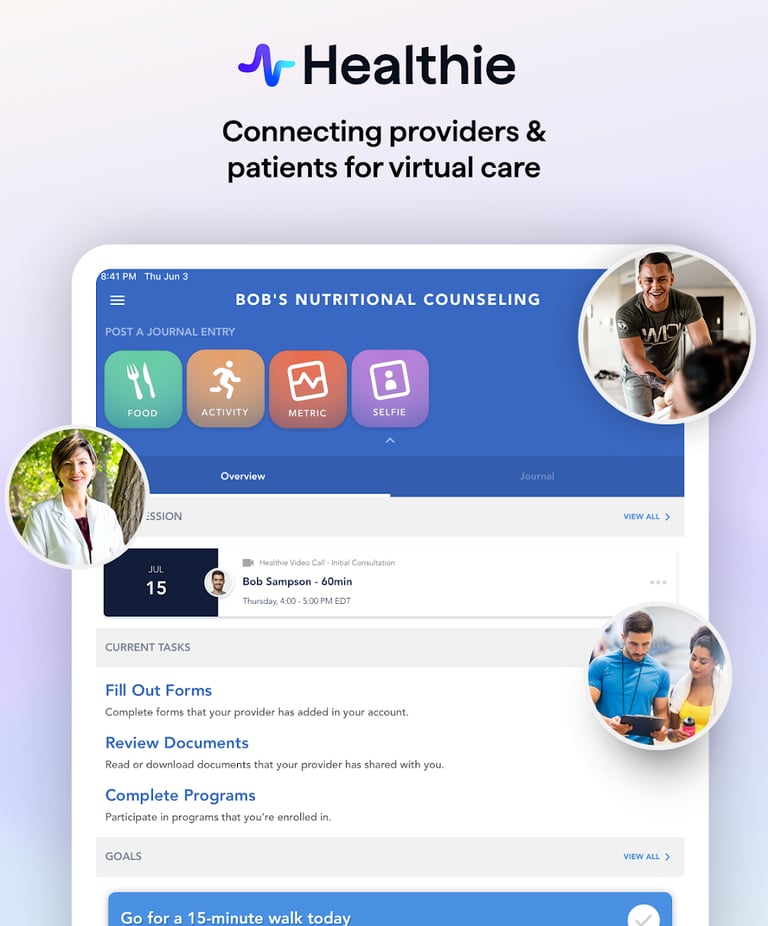
Step 1 - Download the Healthie App
Use your phone for the best experience.
Download the app:
iPhone: App Store
Android: Google Play
Login using the email you used during registration.
Step 2 - Connect Your Health Data
Attention!
This is the most important step.
Without this, your data will NOT sync automatically
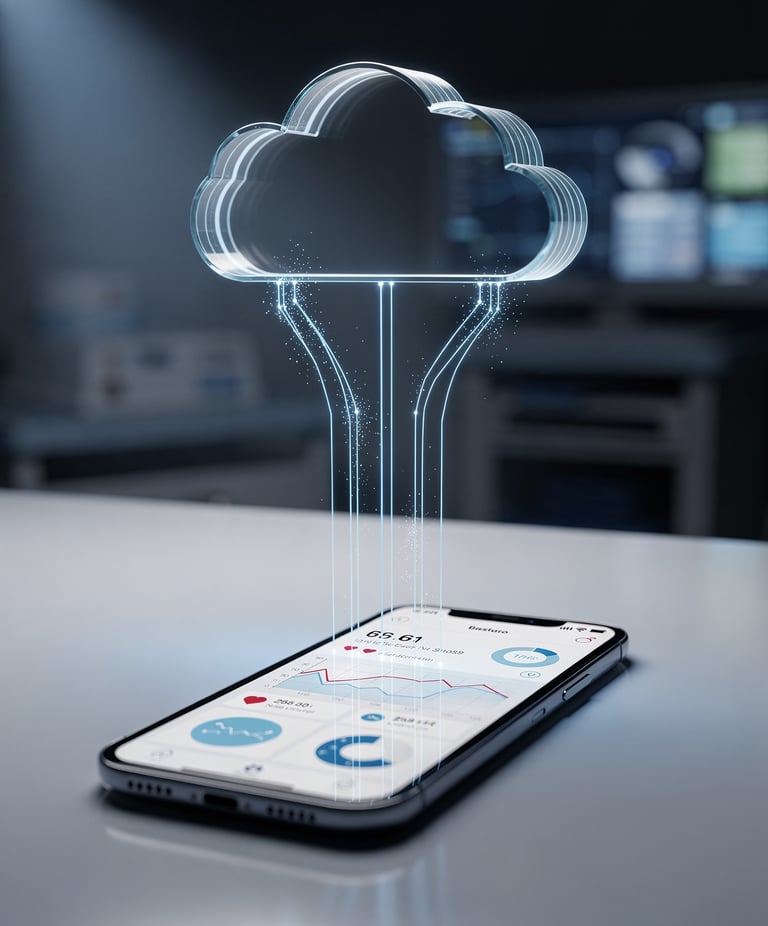
The following cards will walk you through the setup process depending on which devices you use. Follow the instructions that apply to your setup.
If You Have an iPhone
Your iPhone acts as a central hub using Apple Healthie
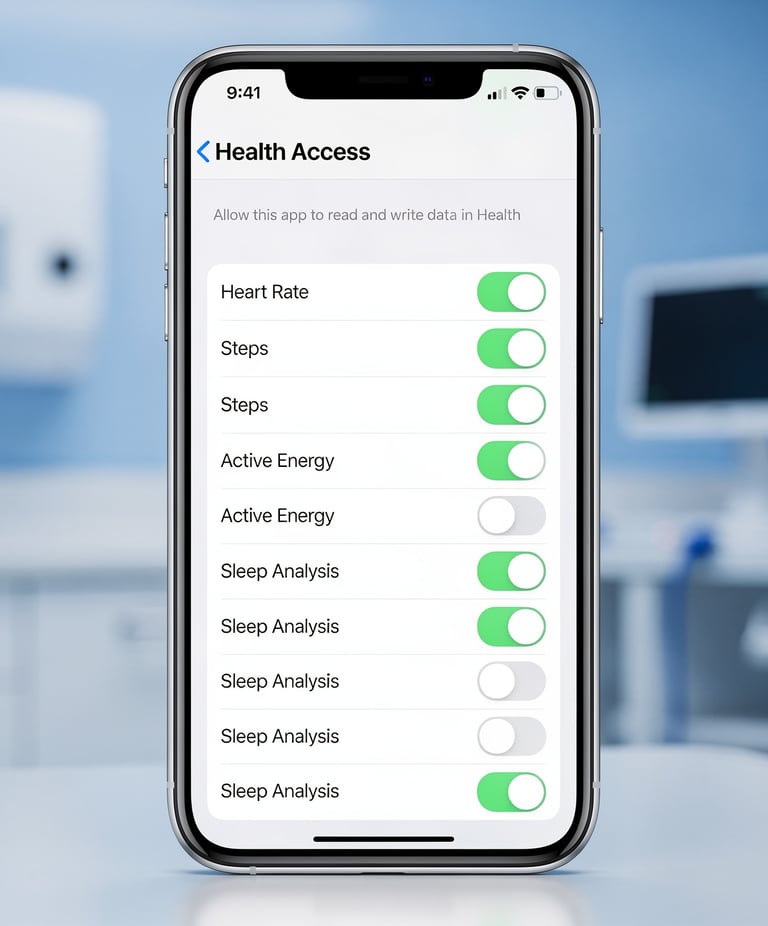
Do this:
1. Open the Healthie App
2. Go to Settings
3. Tap Integrations
4. Select Apple Health
5. Allow ALL permissions (weight, sleep, activity, heart rate)
If You Have an Apple Watch
Good news, no extra setup needed beyond Apple Health.
Your Apple Watch already sends data to Apple Health automatically.
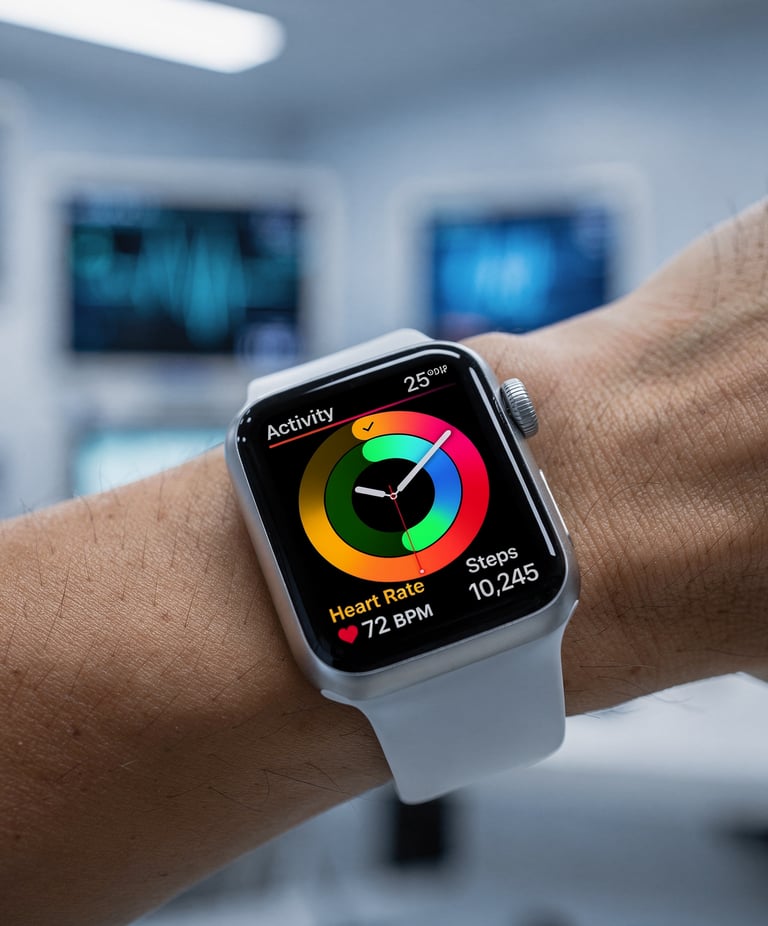
As long as you completed the Apple Health integration in Step 2, your Apple Watch data will flow through automatically, no additional steps required.
If You Use an Oura Ring
To connect your Oura data:
01
Open the Oura App
02
Go to Settings
03
Enable Apple Health Integration
04
Allow Data sharing
Oura Ring
Collects sleep and activity
Healthie
Receives data for care
Apple Health
Aggregates and syncs data
Oura →
Apple Health → Healthie
Once connected, your data flows automatically: Oura → Apple Health → Healthie
If You Use a Withings Scale
You have two options:
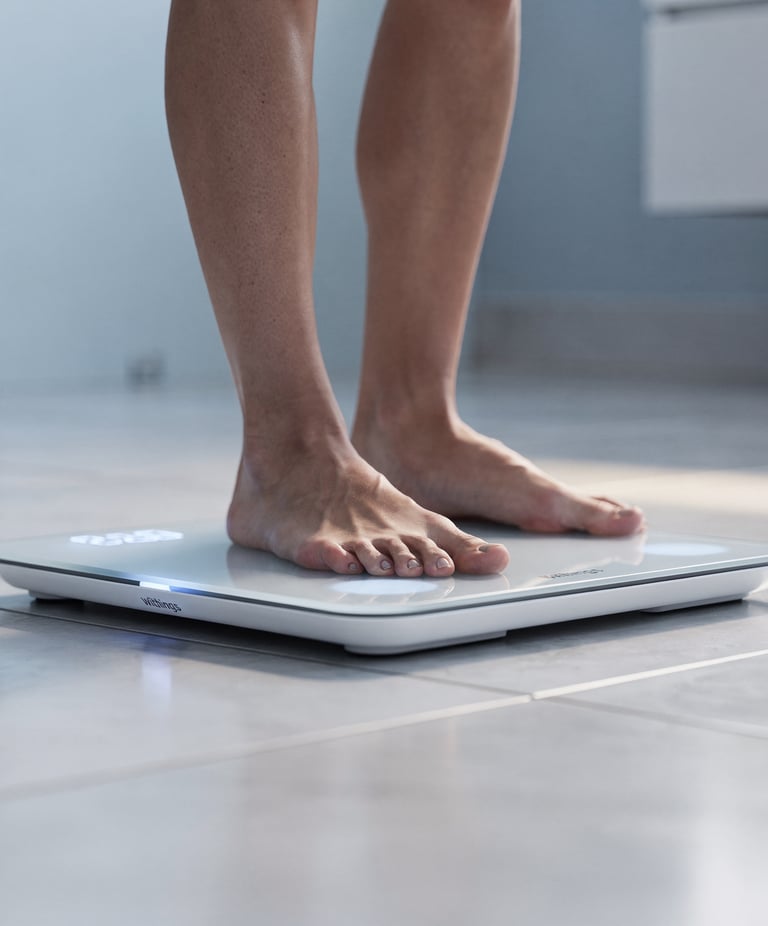
Option A (Recommended)
Connect Withings directly inside Healthie
Option B
Sync Withings → Apple Health → Healthie
Step 3 - What Should Be Syncing
After setup, your profile should start receiving:




Weight
Body weight measurements from your scale or device
Daily step count from your phone or wearable
Calories Burned
Active and resting calorie expenditure
Steps
Sleep Data
Heart Rate
Resting and active heart rate readings
Sleep duration and quality metrics
Attention: If data is not appearing, it usually means permissions were not enabled. Go back and review your integration settings.
Step 4 - Daily Tracking
In addition to automatic data, you will manually track:
Appetite
Mood
Energy
Sleep quality
Symptoms
Where to find it:
Journal → Daily Entries
This is one of the most important parts of the program.
Step 5 - Metrics & Progress
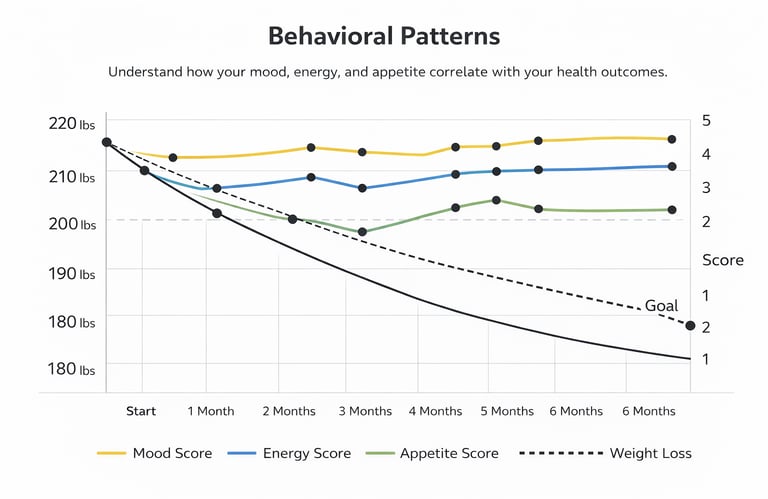
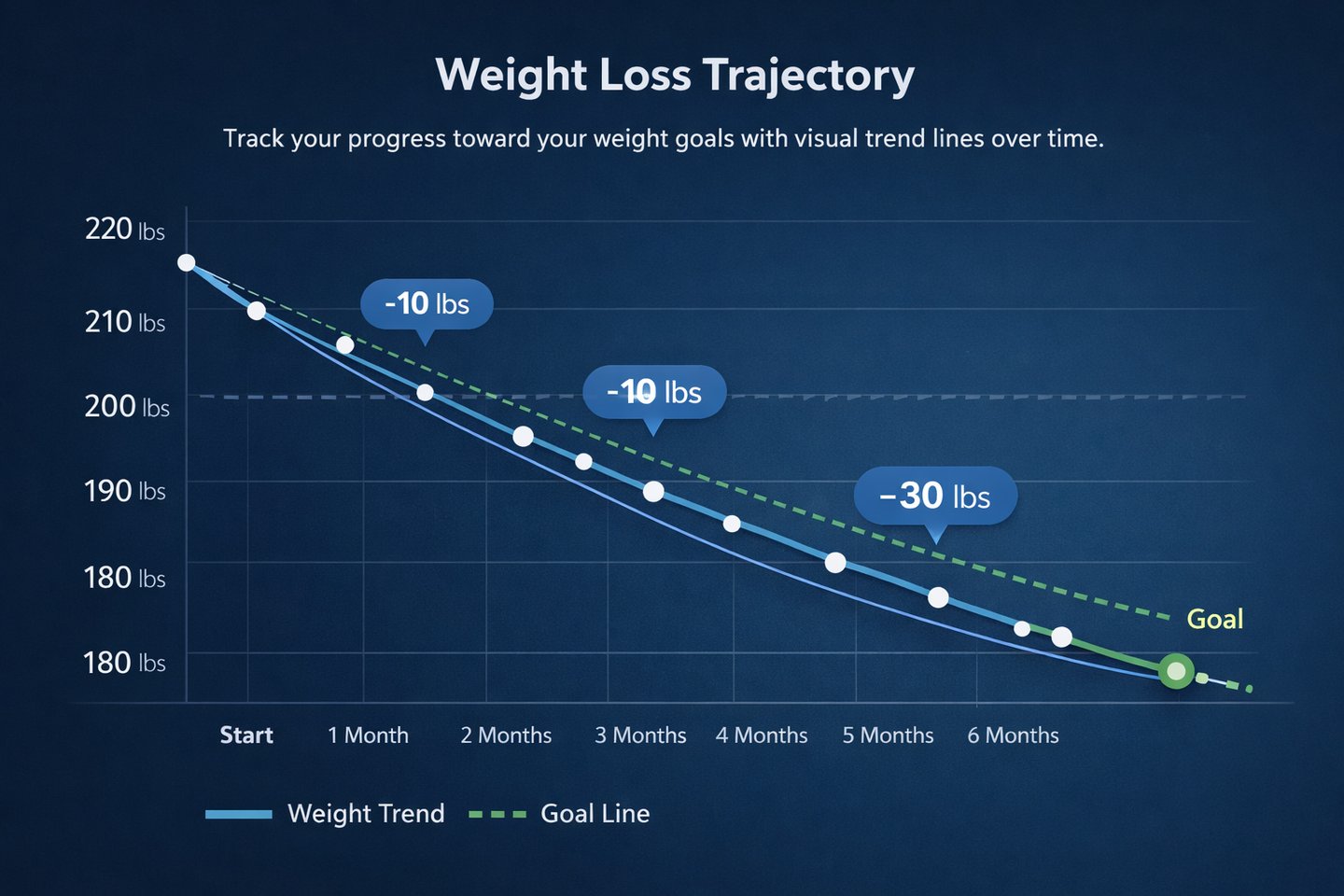
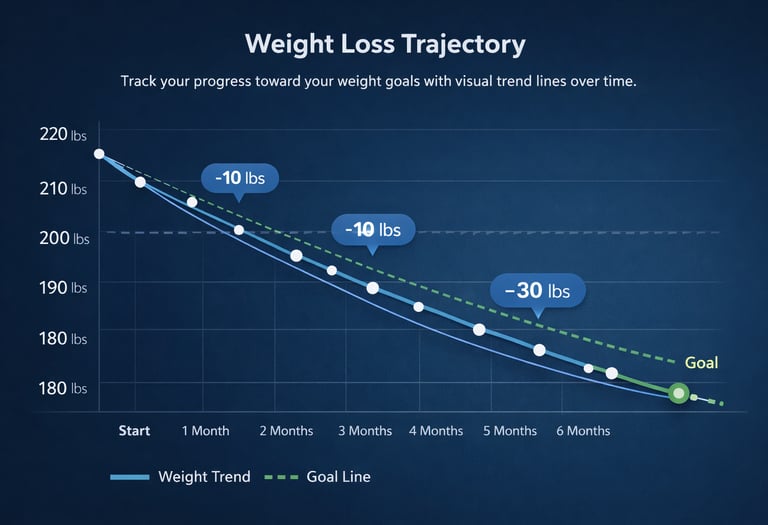
Weight Loss Trajectory
Track your progress toward your weight goals with visual trend lines over time.
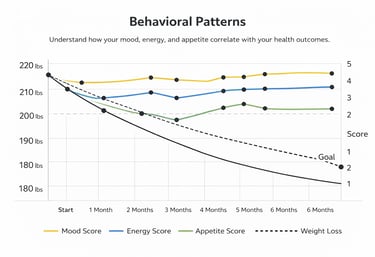
Behavioral Patterns
Understand how your mood, energy, and appetite correlate with your health outcomes.
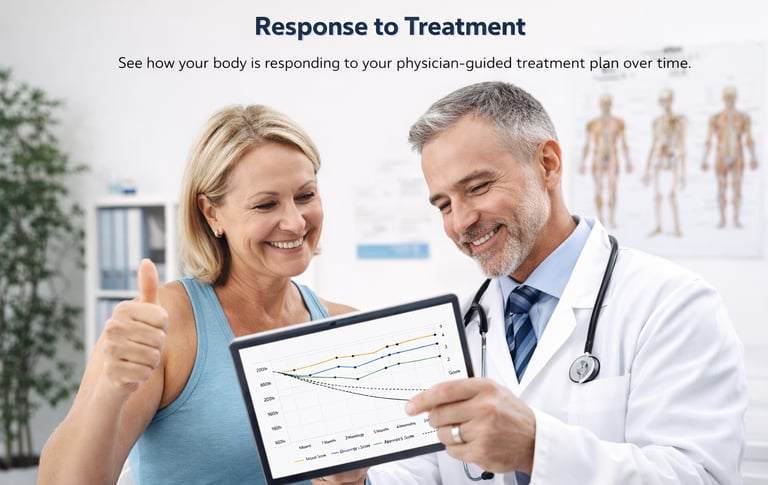
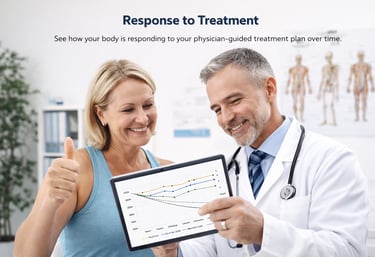
Response to Treatment
See how your body is responding to your physician-guided treatment plan over time.
This is true physician-led digital care.
Your data will be transformed into visual trends over time.
Go to: Metrics → Progress
This allows you (and your physician) to monitor:
This is where your health finally starts making sense
Important Notes
CoreMD Track is designed for adults who want a structured, physician-designed system to organize health data, habits, symptoms, and biometric trends over time.
Data may take a few hours to appear initially
Don't worry if your data isn't visible right away, allow a few hours after completing setup.
If you use multiple devices, duplicate data may occur
Using more than one device that tracks the same metric may result in duplicate entries in your profile.
Some devices require opening their app to sync
If data isn't updating, try opening the native app for your device (e.g., Oura, Withings) to trigger a sync.
Not all advanced metrics (like HRV) may be available
Some advanced biometric data points depend on your specific device and its integration capabilities.
What Happens Next
Once your setup is complete:
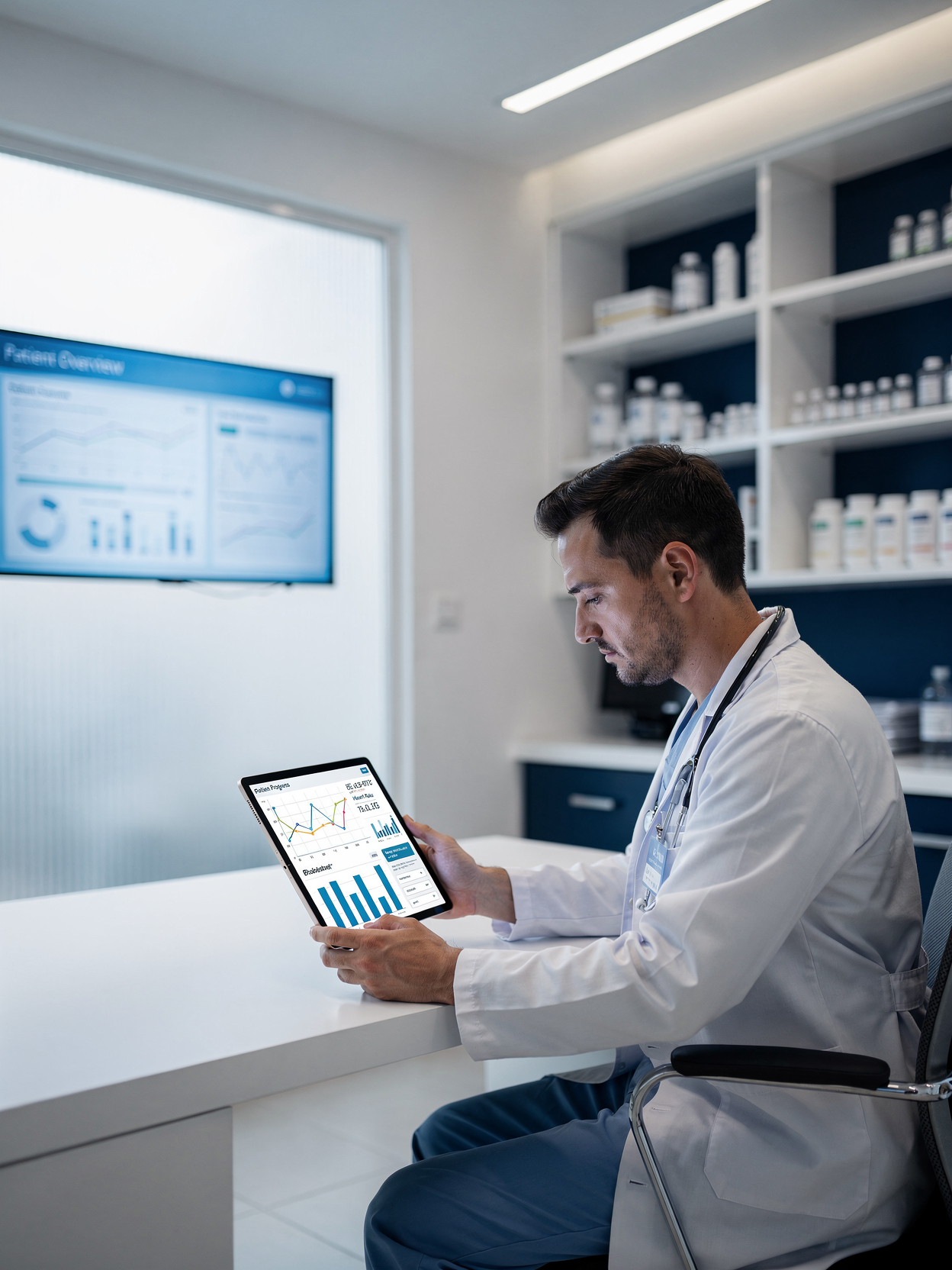
Transparent Monitoring
Your data may be collected and organized continuously, but it is not reviewed in real time. Physician review occurs only during booked or scheduled clinical encounters when included in your program.
Health Trends Organized
Your health data will be organized into clear trends over time
Structured Guidance
You will receive structured guidance throughout your CoreMD Track experience
Contact
Reach us anytime for personalized care
hello@coremdclinic.ca
1-647-848-6104 WhatsApp (preferred)
1-(365) 217-9795 (24/7 automated line)
© 2026. All rights reserved.
986-7B Pleasant Blvd, Toronto, ON (Administrative address ONLY)
M4T 1K2
contact